
When you start a news website, organizing your articles might seem simple. You create a few categories, publish your stories, and let readers explore different topics. However, as your website grows, managing those categories can become more difficult.
For example, an article about government spending on public transportation could fit under Politics, Business, or Local News. Without a clear category structure, you might place similar articles in different sections. Over time, readers may struggle to find the stories they want.
Organizing news categories in WordPress helps you keep related articles together, create useful archive pages, and make your website easier to navigate. It also helps your editorial team decide where to publish new stories.
In this guide, you’ll learn how to plan your news categories, understand the difference between categories and tags, and organize your articles in WordPress. We’ll also explore how JNews can help you customize category pages to better present your content.
1. Start With the Topics You Already Cover
Before creating new categories, take a look at the articles you’ve already published. This will help you understand which topics appear regularly and how you should organize them.
For example, a local news website might regularly publish stories about public transportation, schools, local government, and community events. Meanwhile, a financial news website might focus on stock markets, economic policies, businesses, and real estate.
These recurring topics can help you decide which categories your website needs.
Start by reviewing your recent articles and identifying the main subject of each one. Look for topics that appear frequently enough to deserve their own section.
You should also review your existing categories. Some might contain only a few articles, while others might cover almost identical topics.
For example, suppose your website has separate categories for Local News and Community News. If both contain similar articles about neighborhood events and local government, readers may not understand the difference.
In that case, you could combine the categories or define a clearer purpose for each one.
The goal is to create categories that reflect the content you publish, rather than adding categories simply to fill your navigation menu.
2. Understand the Difference Between Categories, Tags, and Menus
WordPress gives you several ways to organize content, but categories, tags, and menus serve different purposes.
Understanding how they work will help you build a website that readers can navigate easily.
Categories
Categories group your articles into broader topics.
For example, a general news website might use Politics, Business, Technology, Sports, and Entertainment as its main categories.
When readers click a category, WordPress displays an archive page containing articles assigned to that category.
You can also create subcategories to organize more specific topics.
For example, you could organize your Business section like this:
This structure helps readers explore specific subjects without requiring you to place every topic in the main navigation.
Tags
Tags help you connect articles that share a specific subject, event, person, or theme.
For example, you might publish several articles about inflation. Some belong to Business, while others belong to Politics.
You can use an Inflation tag to connect those articles, even though they appear in different categories.
Unlike categories, tags don’t support parent and child relationships.
You also don’t need to create a tag for every keyword mentioned in an article. Focus on subjects that readers might want to explore across multiple stories.
You can learn more about how WordPress organizes content in the WordPress taxonomy guide.
Menus
Menus determine which links appear in your website’s navigation.
Although categories help organize articles, you don’t need to display every category in your main menu.
For example, your website might contain 15 categories, but your main navigation only needs to highlight News, Business, Technology, Sports, and Opinion.
Readers can access the remaining categories through dropdown menus, homepage sections, or other links throughout your website.
This approach keeps your navigation simple while allowing visitors to explore more specific topics.
3. Give Every Category a Clear Purpose
After identifying your main topics, decide what kind of articles belong in each category.
This step matters because some news topics naturally overlap. Without clear rules, editors might assign similar stories to different sections.
For example, consider these two categories:
Transport: Covers public transportation, road closures, traffic regulations, and changes to transportation services.
Community Events: Covers upcoming festivals, local gatherings, public celebrations, and other community activities.
Both categories could contain local news, but they serve different purposes.
You should also choose category names that readers can easily understand. Avoid using internal editorial terms that might be unfamiliar to your audience.
You should also choose category names that readers can easily understand. Avoid using internal editorial terms that might be unfamiliar to your audience.
Once you’ve decided on your categories, you can create them in WordPress.
Go to Posts > Categories in your WordPress dashboard. From there, you can configure several settings:
For example, you could create a Technology category with the slug technology and a description explaining that it covers gadgets, software, artificial intelligence, and technology companies.
You can also create AI as a subcategory of Technology if your publication regularly covers artificial intelligence.
WordPress provides more details about these settings in its Posts Categories documentation.
Before creating too many categories, ask whether each one will contain enough relevant articles.
A category with only one or two unrelated posts might not need its own archive page. You can always create a more specific category later as your coverage grows.
4. Assign Articles to the Right Categories
Creating categories is only the first part of organizing your news website. You also need to make sure your articles appear in the appropriate sections.
WordPress allows you to assign more than one category to a post. This gives you flexibility when a story covers multiple subjects.
For example, an article about new government regulations affecting technology companies could belong to both Politics and Technology.
However, that doesn’t mean every article needs multiple categories.
Assigning too many categories can make your archive pages repetitive. Readers might find the same stories appearing across several sections, even when those stories have little connection to the category.
A useful approach is to identify the main subject of each article before choosing its categories.
Consider a story about a new public transportation project.
If the article focuses on construction plans, routes, and public transportation services, Transport would be an appropriate category.
However, if it mainly discusses government spending and economic consequences, Business or Politics might make more sense.
You can assign an additional category when the story genuinely covers both subjects.
To manage categories for a post, open the article in the WordPress editor and find the Categories settings in the sidebar.
Select the categories that best describe your article, then save or publish your changes.
For more information, you can read the WordPress post settings guide.
If multiple writers contribute to your website, establish simple editorial guidelines for assigning categories. This helps everyone organize similar stories consistently.
5. Review Your Category Pages Before Adding Them to Navigation
Every WordPress category has an archive page that displays the posts assigned to it.
These pages play an important role in helping readers explore your website.
For example, someone interested in financial news might visit your Business category to find the latest market updates, company announcements, and economic reports.
However, simply creating a category doesn’t guarantee that its archive page will be useful.
Before adding a category to your website’s main navigation, open its archive page and review the articles it contains.
Start by checking whether the articles match the category name.
If your Technology category contains unrelated stories about sports or community events, review how you’ve assigned those posts.
Next, consider how readers will browse the page.
Can visitors easily identify the latest articles? Can they find older coverage? Does the layout make headlines and featured images easy to scan?
You should also check how the category page appears on mobile devices. Readers need to navigate between articles comfortably, even on smaller screens.
Once you’re satisfied with the content and presentation, decide where the category should appear.
Your most important categories might deserve a place in the main navigation. More specific categories might work better in dropdown menus or links within related sections.
You don’t need to display every category in your navigation. Focus on helping readers reach the topics they’re most likely to explore.
6. Customize Your News Category Pages With JNews
WordPress automatically creates category archive pages, but you may want more control over how those pages display your articles.
For a news website, different categories might benefit from different layouts.
For example, your Politics section might highlight the latest important stories at the top, followed by a list of recent articles.
Meanwhile, your Entertainment section might benefit from a more visual layout with larger featured images and multiple article sections.
With JNews, you can customize how your category pages look and organize their content.
JNews includes a Category Builder that lets you create custom category layouts using different content blocks and post listing styles.
Instead of relying on the same layout for every category, you can choose how articles appear based on the type of content you publish.
For example, you could highlight important articles at the top of a category page, then display additional stories in smaller grids or lists.
You can explore the available customization tools through the JNews Layout & Website Builder.
Explore JNews Demos for Layout Ideas
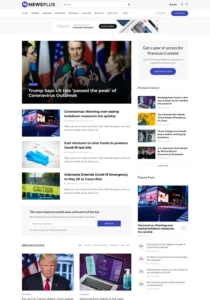
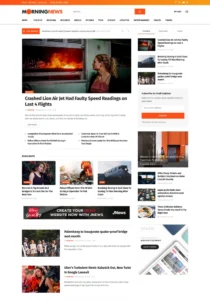
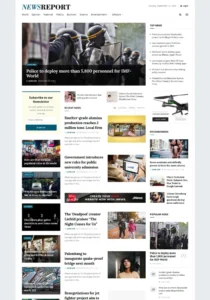
If you’re building a new news website, you can also explore the JNews demo library to see different ways to present news content.
A local news website might organize its homepage around community updates, public services, and neighborhood stories.
A financial news website might focus on market reports, economic developments, and company news.
These examples can help you understand how different publications arrange their content.
However, you don’t need to follow the exact categories used in a demo. You can replace them with topics that match your publication and customize the design to fit your needs.
Remember that your category structure should come from the content you publish, while your layout should help readers explore that content.
7. Review and Update Your Categories as Your Website Grows
Your news website will likely change over time.
You might start publishing more articles about certain topics, introduce new sections, or stop covering subjects that no longer fit your publication.
That’s why you should review your categories regularly.
For example, your Technology category might initially cover gadgets, software, and artificial intelligence.
As you publish more AI-related stories, you might decide to create a dedicated Artificial Intelligence subcategory.
Similarly, if one of your existing categories rarely receives new articles, consider whether it still needs its own section.
You can also review how your writers assign articles to categories. If similar stories regularly appear in different sections, your category descriptions might need clarification.
Try to avoid creating a new category whenever you publish a story about a different subject.
Instead, consider whether the topic will become a regular part of your coverage and whether readers would benefit from having a dedicated archive.
By reviewing your categories occasionally, you can keep your website organized as your content library grows.
FAQ
Start by grouping your regular coverage into clear topics, such as Politics, Business, Technology, Sports, or Local News. Then, go to Posts > Categories in WordPress to create and manage each category. Give every category a clear name and description so readers know what to expect.
Categories organize posts into broader topics, while tags connect articles through more specific subjects. For example, an article about interest rates might belong to the Business category and use tags like Inflation or Banking. Categories also support parent and child categories, while tags do not.
There is no fixed number of categories for a news website. Start with a manageable number of main categories based on the topics you cover regularly. As your content grows, you can introduce subcategories to organize more specific subjects without making navigation complicated.
Final Thoughts
Organizing news categories in WordPress helps readers find articles, explore different subjects, and discover more content on your website.
A good category structure also makes managing your publication easier. Your editorial team can organize new stories consistently, while readers can browse your website without having to search through unrelated articles.
Start by reviewing the topics you already cover. Create categories that reflect those subjects, give each one a clear purpose, and avoid unnecessary overlaps.
As your website grows, revisit your categories to make sure they still match the content you publish.
With JNews, you can take things further by customizing how your category pages display articles. Its Category Builder gives you more flexibility to highlight important stories, arrange post listings, and create layouts for different sections of your publication.
You can also explore the JNews demo library for layout ideas, discover more JNews features, or visit the JNews pricing page to get started.