
Version 20.0.0
Here is an explanation of some updates in JNews v20.0.0
- Added a feature to convert icons to SVG
- Added more styling options to all JNews elements in Elementor
- Added an Included Date Range filter to all JNews elements
- Added instant preload cache headers and cache duration settings
- Updated the font list in the JNews Global Font options
- Added JNews – Popular Post and JNews – Tab Post Widget as Elementor elements
- Added more filter options to the Popular Post Widget
- Added a new plugin: JNews – Optimizer
Added a feature to convert icons to SVG
We’ve added support for automatically converting supported font icons into SVG icons. SVG icons are lightweight, scalable, and render more sharply across all devices, while also reducing the reliance on icon font files. This feature helps improve both performance and visual quality without requiring changes to your existing layouts.
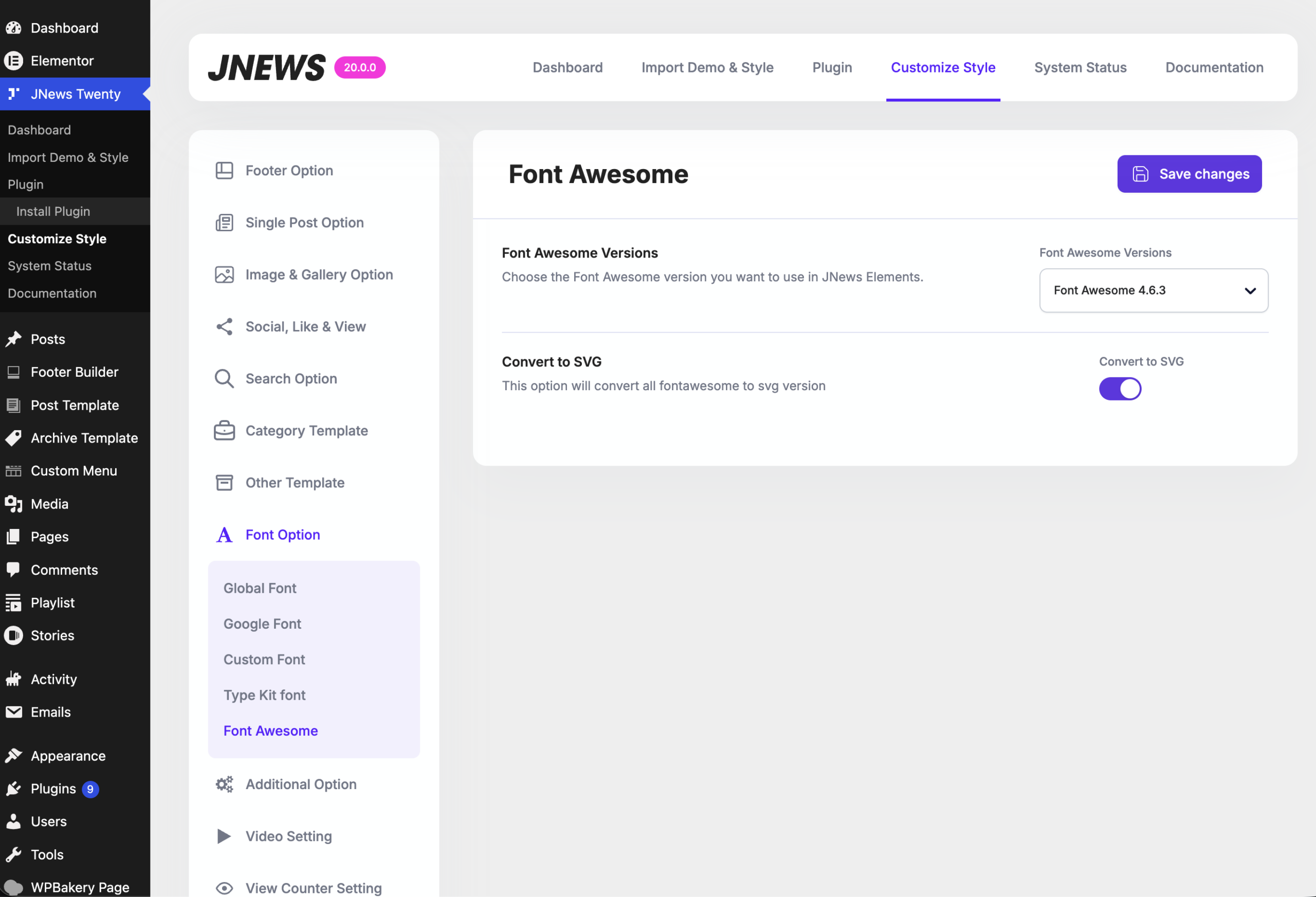
You can enable this feature by navigating to JNews → Customize Style → Font Option. Once enabled, all supported icons generated by the theme throughout your website will be automatically rendered as SVGs.
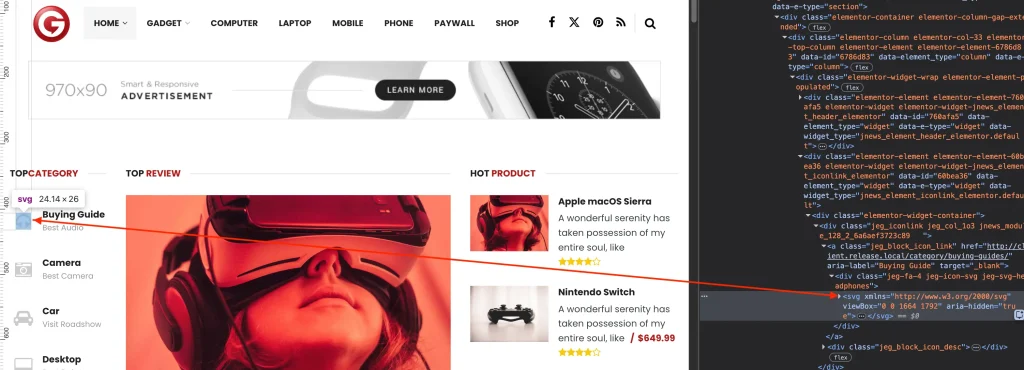
The SVG icons generated by this feature are designed to match the Font Awesome version currently used by your theme. This ensures that the appearance of your icons remains consistent after the conversion, so your website’s design and visual identity are preserved.
By converting the Font Awesome icons used on your website to SVG, you can avoid loading the Font Awesome assets, which helps reduce the page size and improve website performance.
Added more styling options to all JNews elements in Elementor
Designing a unique homepage and matching module layouts with your brand has just become much easier! We have greatly expanded the styling and design options across the main JNews module groups, including Heros, Blocks, Sliders, and Carousels.
Previously, fine-tuning visual details like specific font sizes, custom element margins, custom card borders, or individual module colors required writing custom CSS code. With this update, you can customize almost every visual aspect of your modules directly from your elementor editor
1. More Typography Customization
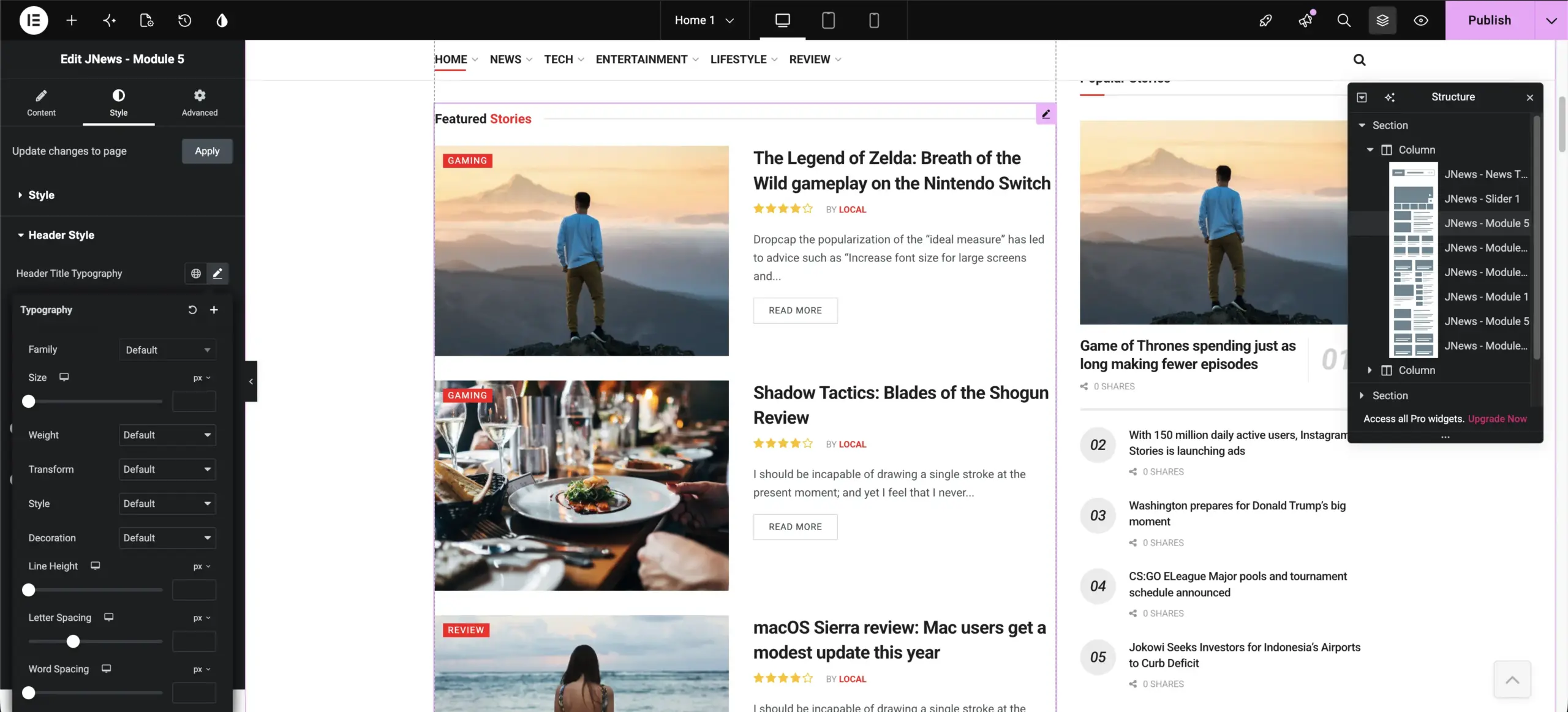
While JNews already supports custom typography, this update expands those controls to even more places within individual modules. You no longer have to rely on global styles or custom CSS to fine-tune text elements. You can now define font sizes, weights, line heights, and styles for specific areas of your blocks, creating a cleaner visual hierarchy.
For example, you can now customize typography settings for the block headers as shown in the image below:
2. More Color and Hover Control Options
We have also added even more dedicated color controls across different modules. This allows you to customize the color scheme of specific elements individually. For example, you can now change the second header title text color, category label colors, or read more button color within the module settings. You can see the new color settings panel below, allowing you to configure normal and hover states for elements like block headers.
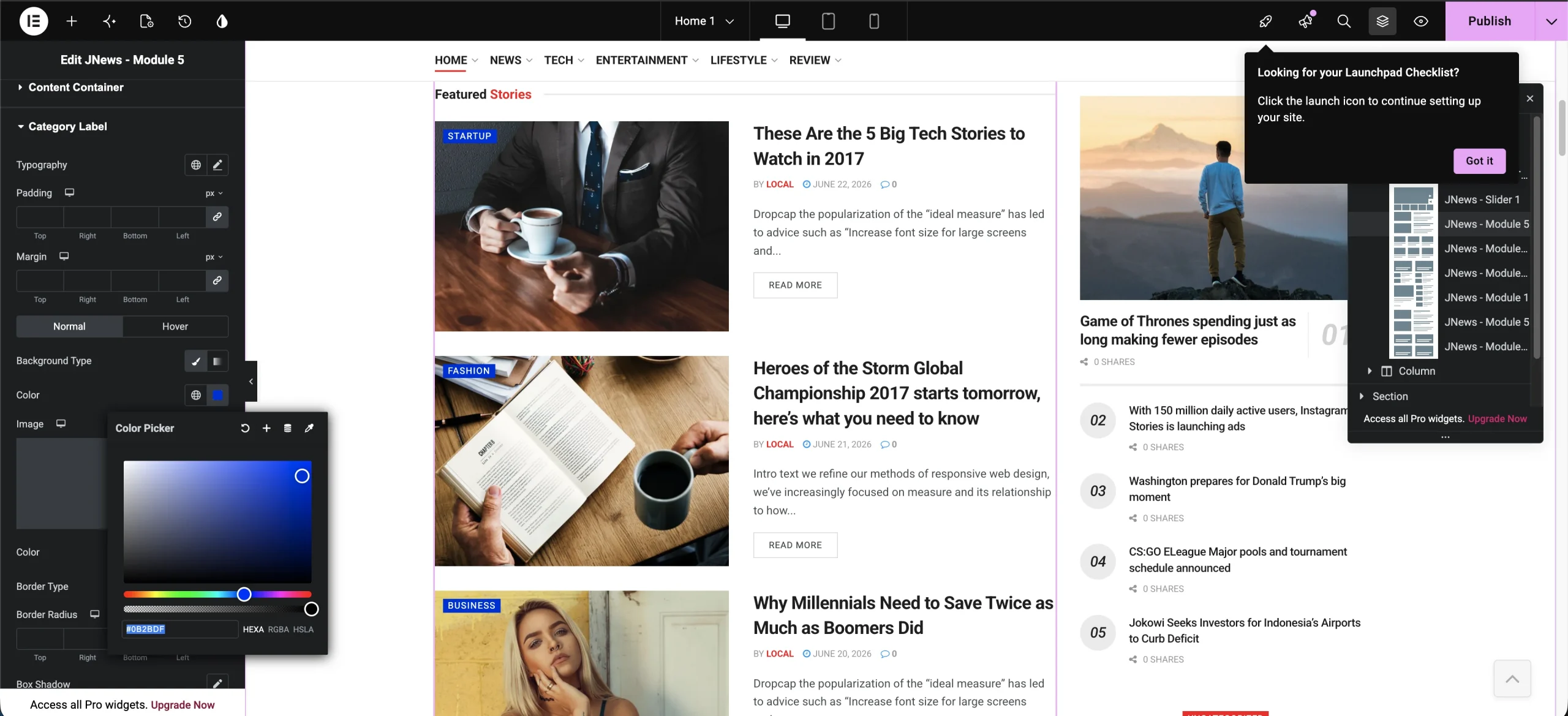
You can explore the color settings panel to try out different combinations of normal and hover colors for your page elements.
3. Add Category Label Styling
Category labels (the colored badges indicating which category a post belongs to) are helpful for readers browse your site. With this update, we have introduced more styling controls for category labels inside JNews Blocks, allowing you to design them to perfectly match your site layout.
For example, you can see the new category label options, including background type, dimensions (margin and padding), and border settings below:
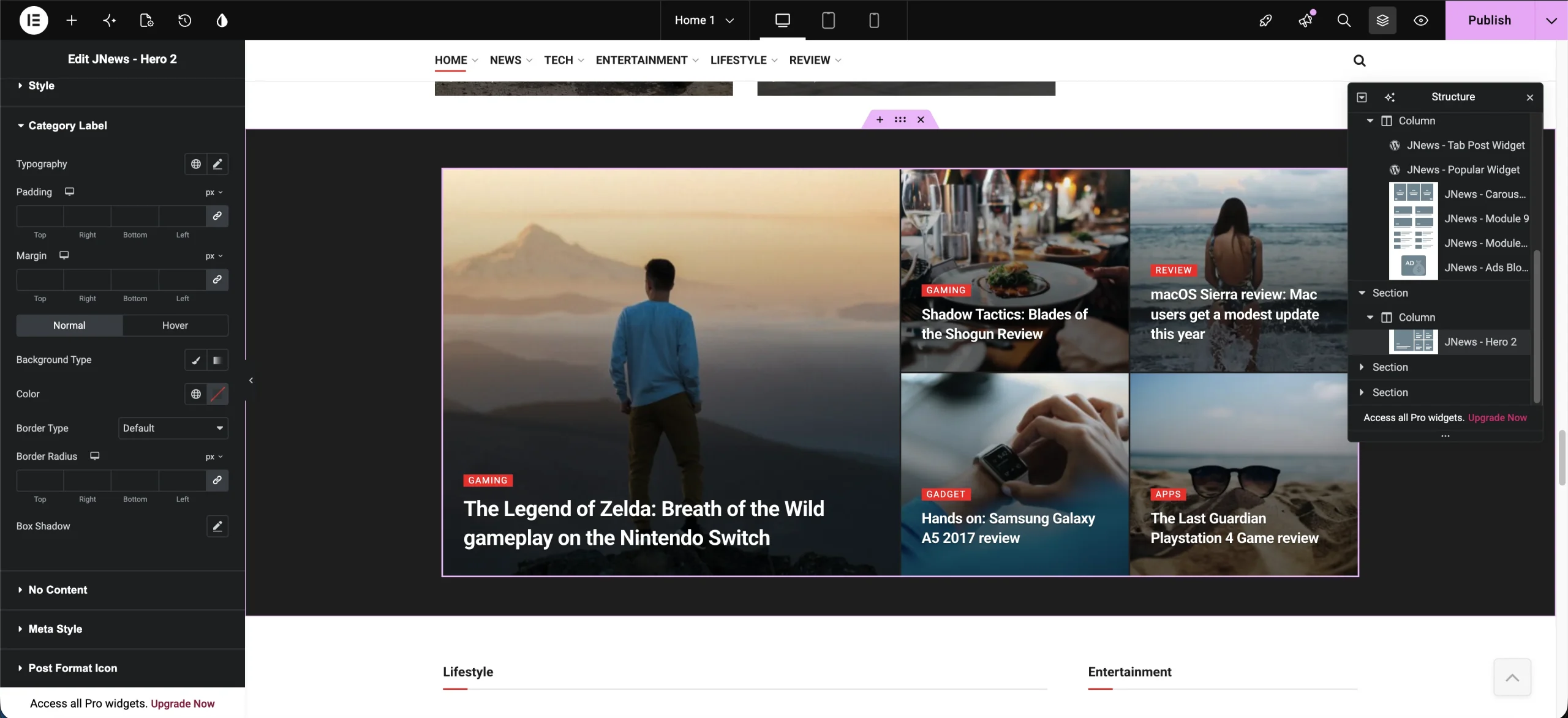
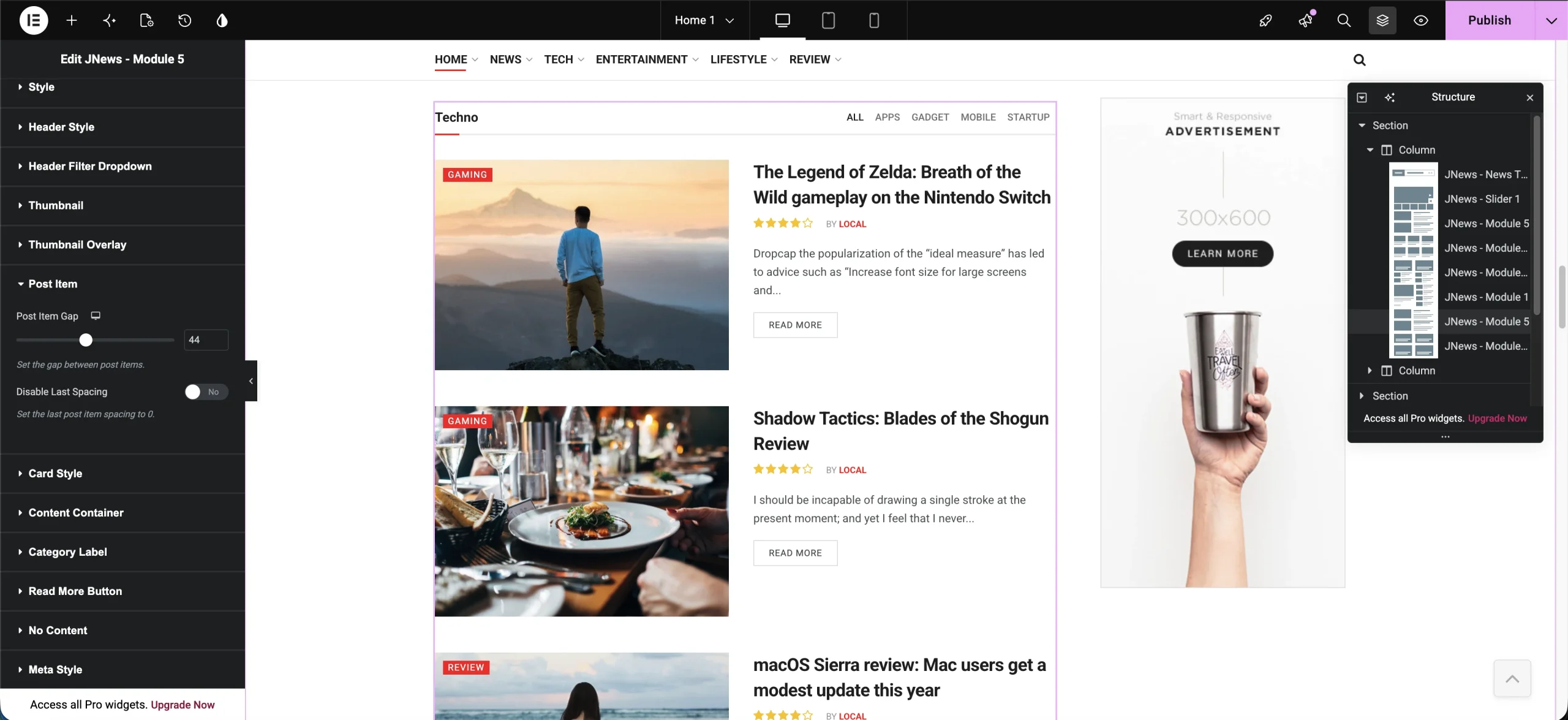
4. Post Item Spacing & Gap Control
We have also added controls for post item spacing, allowing you to fine-tune the vertical gap between post items inside your modules and handle the spacing of the final element gracefully.
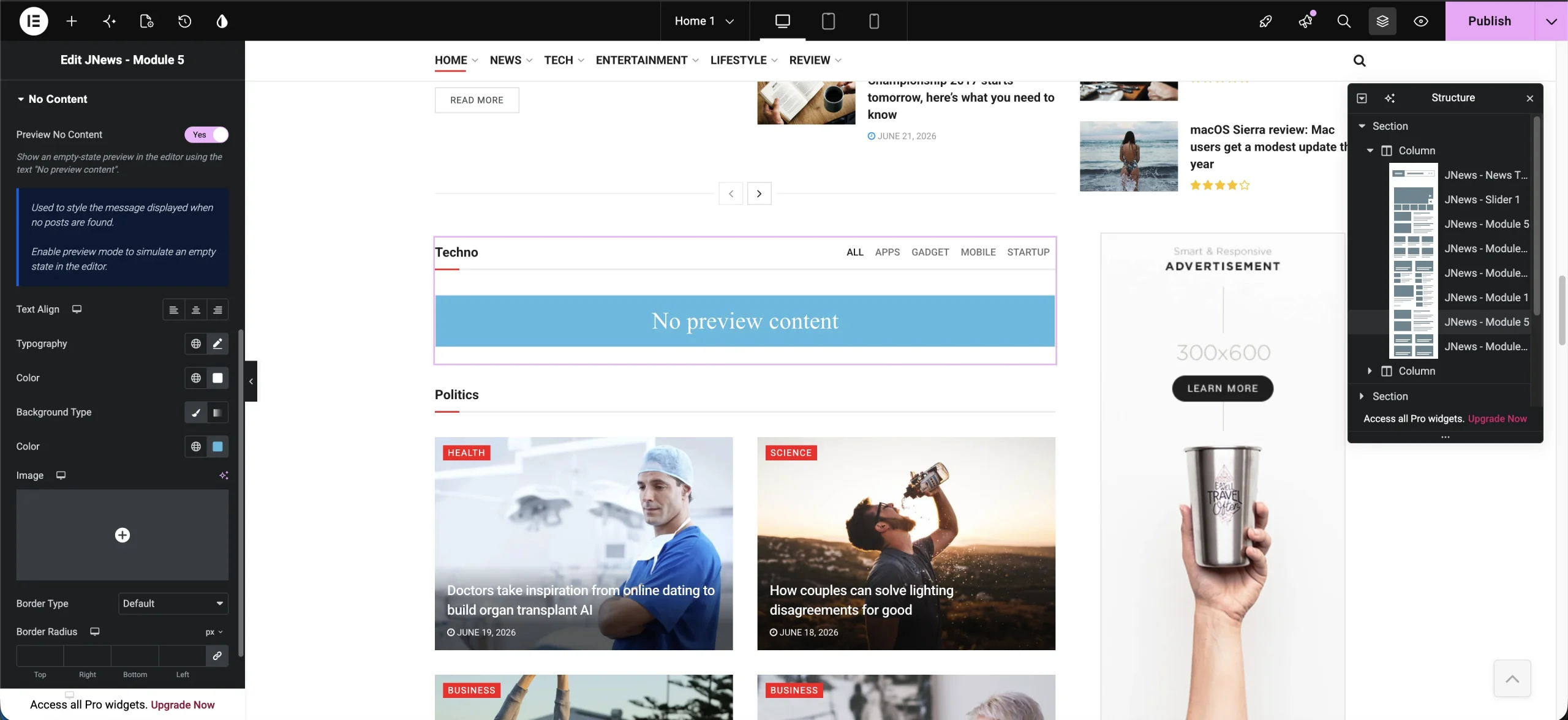
5. Empty State & “No Content” Styling
Designing a fallback look when no posts are available or found is just as important as styling the posts themselves. We have introduced complete styling options for empty states, along with an editor preview helper to style the message instantly without needing empty query simulation.
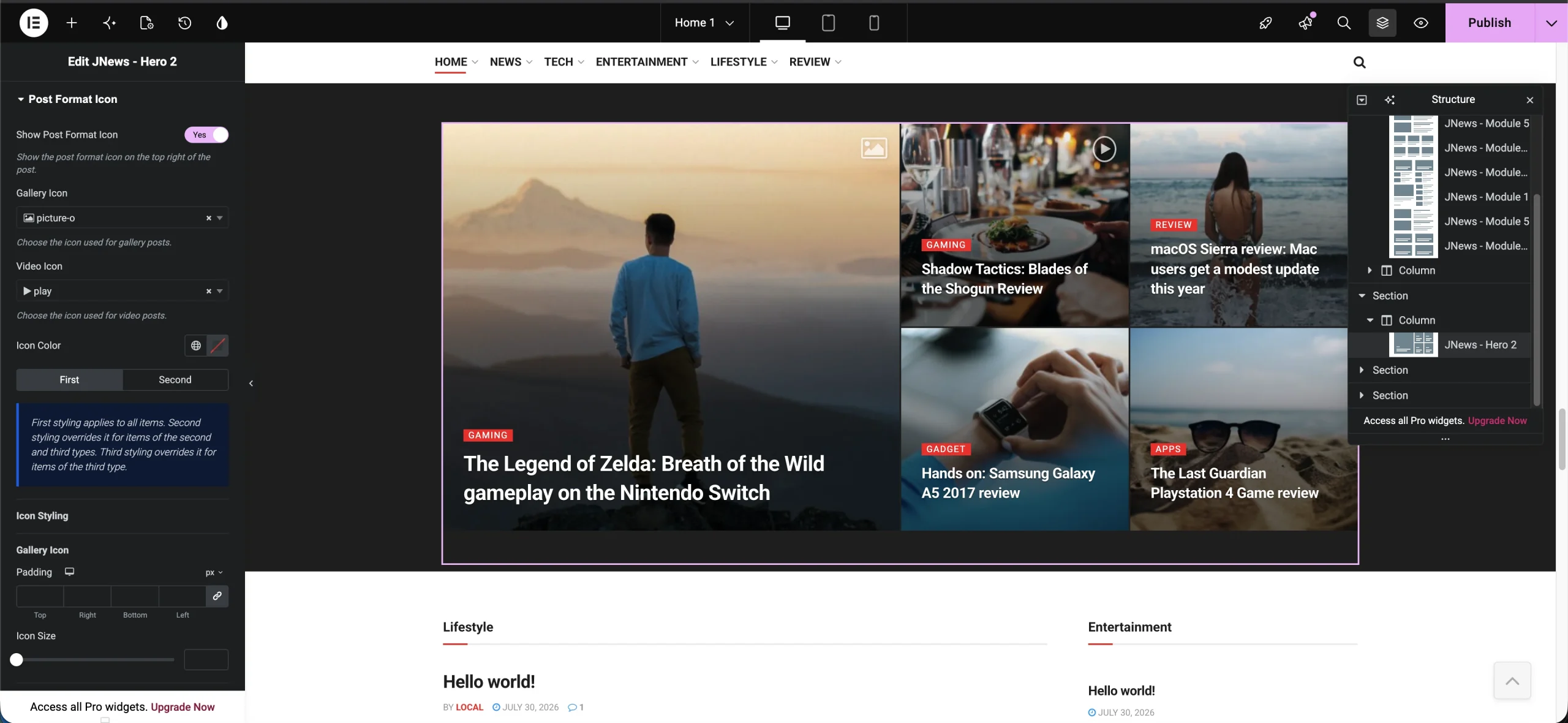
6. Post Format Icons (Video, Audio & Gallery Indicators)
You can now disable the post format icon or configure the post format icons (like changing play buttons icon for video type post or camera icons for gallery type post) directly in the module settings.
7. Slider Navigation Customization
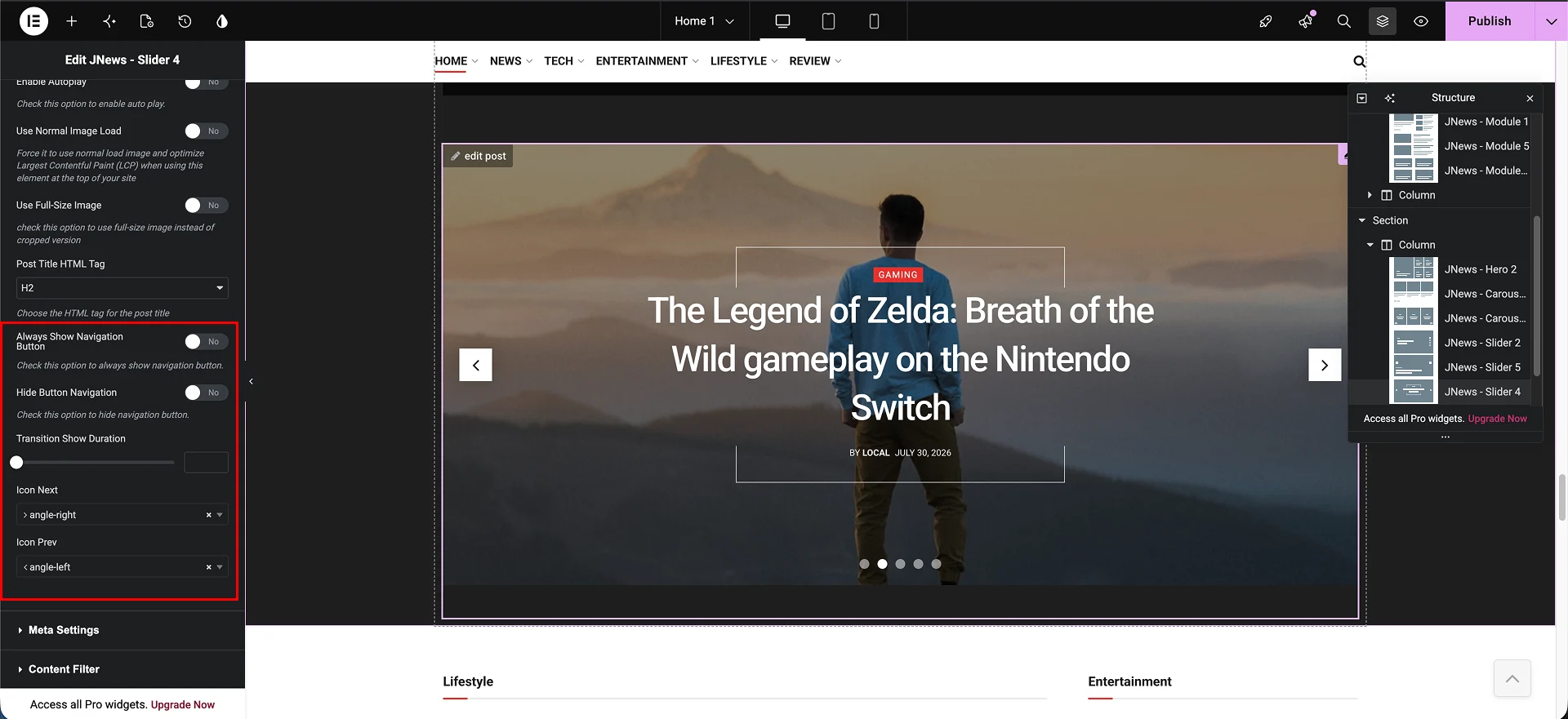
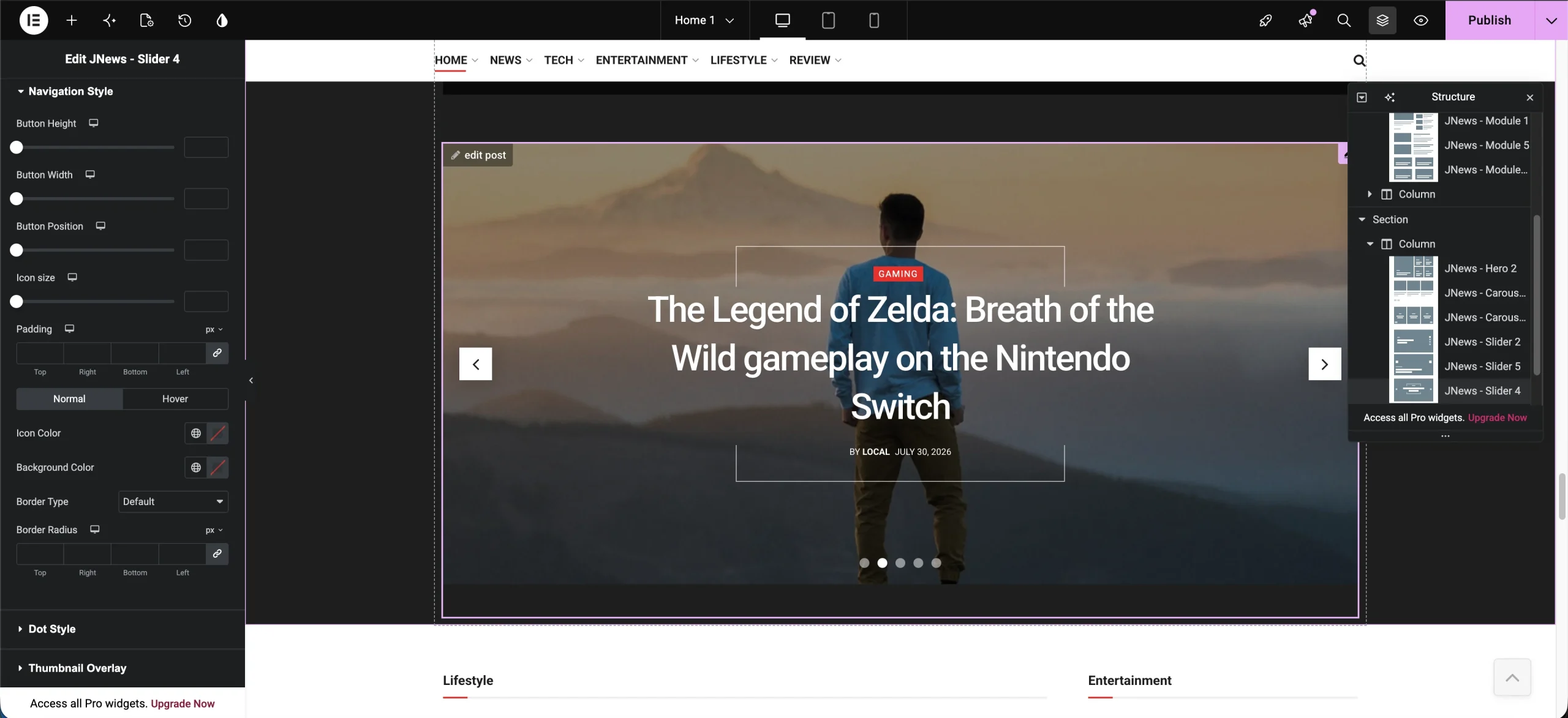
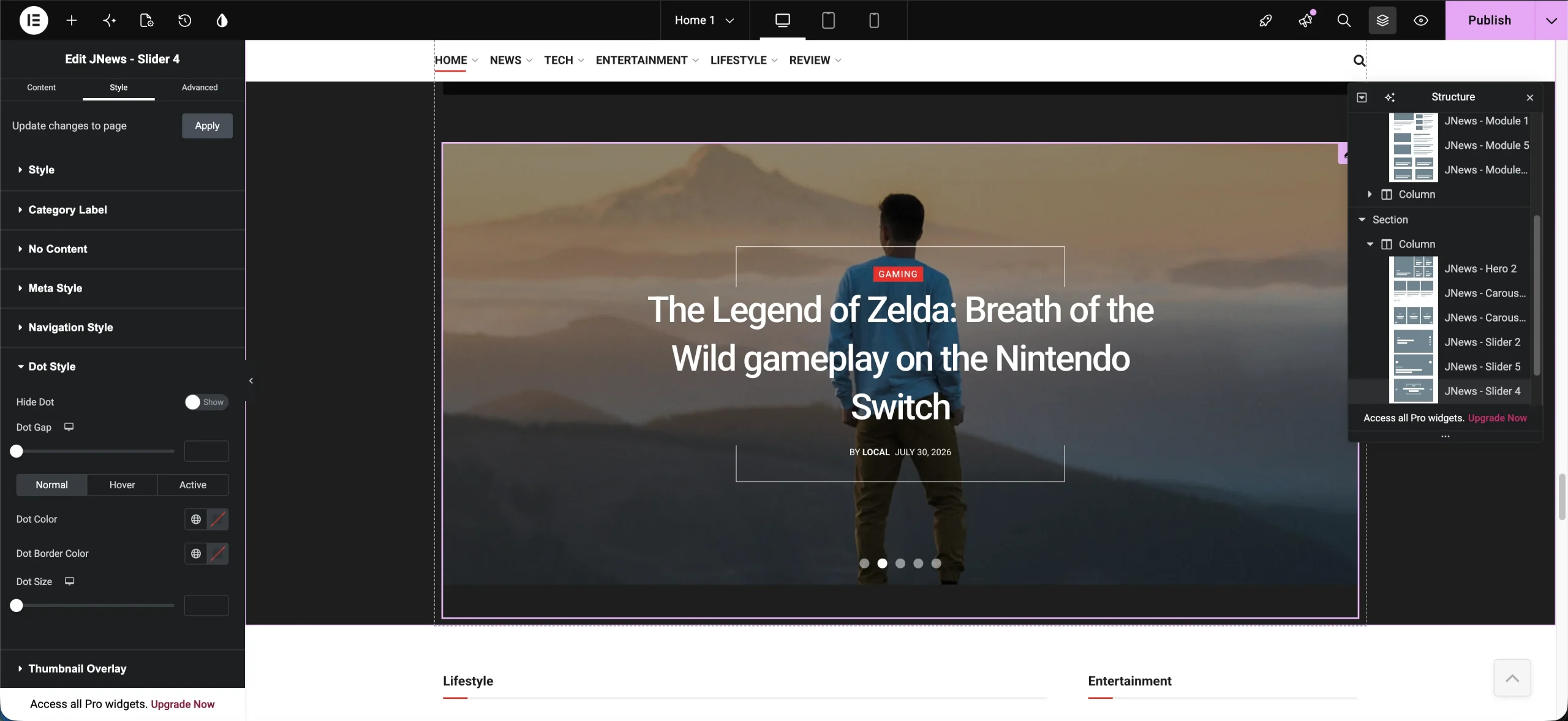
In the JNews Slider modules, you can now configure the navigation icons and adjust the styling of the pagination dots.
You can change icon for next and previous slide, setting for always showing navigation or hide the navigation, as shown in the image below:
You can also customize the navigation style settings, as shown in the image below:
You can also customize the dots style settings, as shown in the image below:
We encourage you to explore these options yourself! Open any JNews module (Heros, Blocks, Sliders, or Carousels) inside your elementor editor and look through the expanded styling tabs. You will find plenty of new parameters to fine-tune your designs and create the perfect website layout without writing a single line of code.
Added an Included Date Range Filter to All JNews Elements
To help you create a more dynamic and timely layout, we have added a new Include Date Range option under the Content Filter settings of JNews Modules. This option allows you to limit the posts displayed in a specific block based on their original published date or their last modified (updated) date.
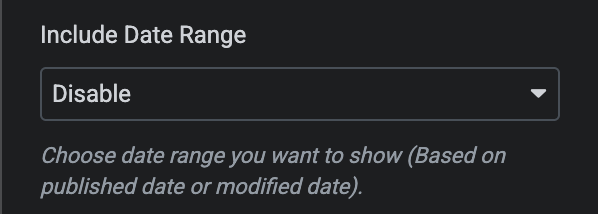
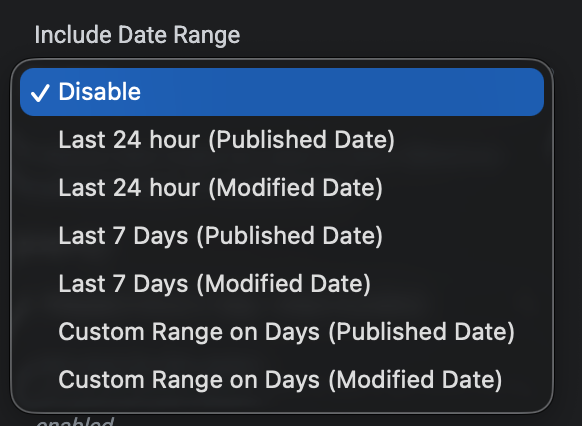
This is particularly useful when you want to design time-sensitive content sections—like “Today’s Breaking News” or “Recently Updated Articles”—ensuring your visitors always see the most relevant information.
How You Can Filter Your Content
Depending on your site’s needs, you can choose to query posts based on two different dates:
- Published Date: Best for displaying newly created articles.
- Modified Date: Ideal for evergreen websites or tutorial blogs, where you want to highlight older articles that have recently been updated with fresh info.
With these two dates, you can filter your content by the following presets:
- Last 24 hours: Shows posts published or modified within the last day.
- Last 7 days: Shows posts published or modified within the past week.
- Custom range on days: Displays posts published or modified within a specific number of days defined by you.
Setting Up a Custom Range
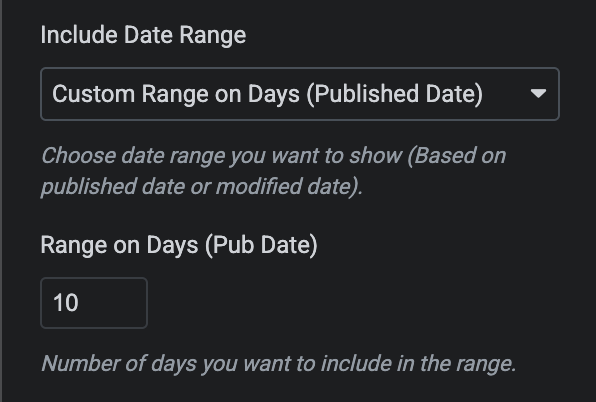
When you select a Custom Range option (either for Published Date or Modified Date), a secondary setting field—Range on Days (Pub Date) or Range on Days (Mod Date)—will automatically appear. Here, you can enter the exact number of days (e.g., 14 days, 30 days) you want to include in the filter.
Combine with Popular Posts
The date range filter is fully integrated with JNews View Counter. If your module sorts posts by popularity (views) or comment count, applying this filter will limit the search to your chosen timeframe. For example, instead of listing all-time popular posts, you can now display the “Most Popular Posts Published in the Last 7 Days.”
Note: The minimum value for a custom day range is 1. Please keep in mind that the date range filter will not be applied when using the predefined “Random Post (7 Days)” or “Random Post (30 Days)” sorting options.
Added instant preload cache headers and cache duration settings
In the previous version, the JNews theme already included the Instant Link Preload feature, which loads pages earlier when users hover over their links.
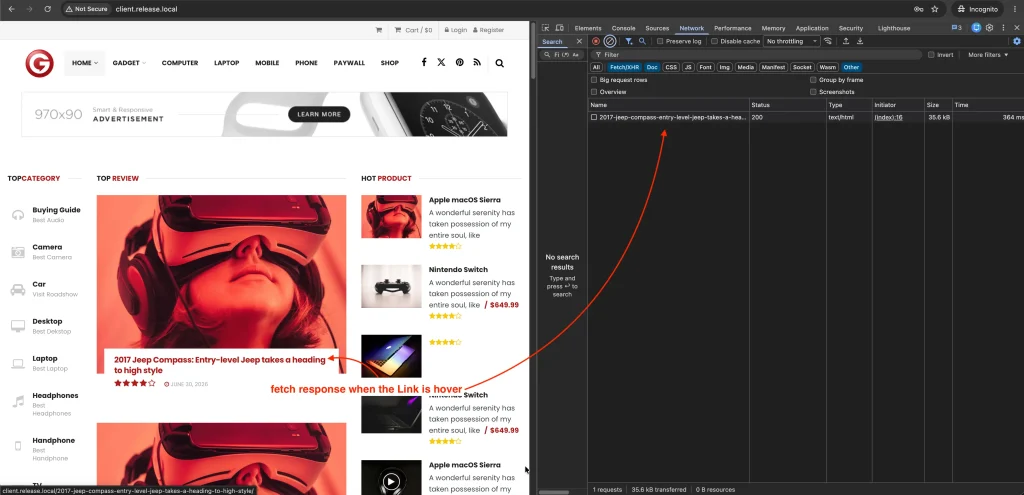
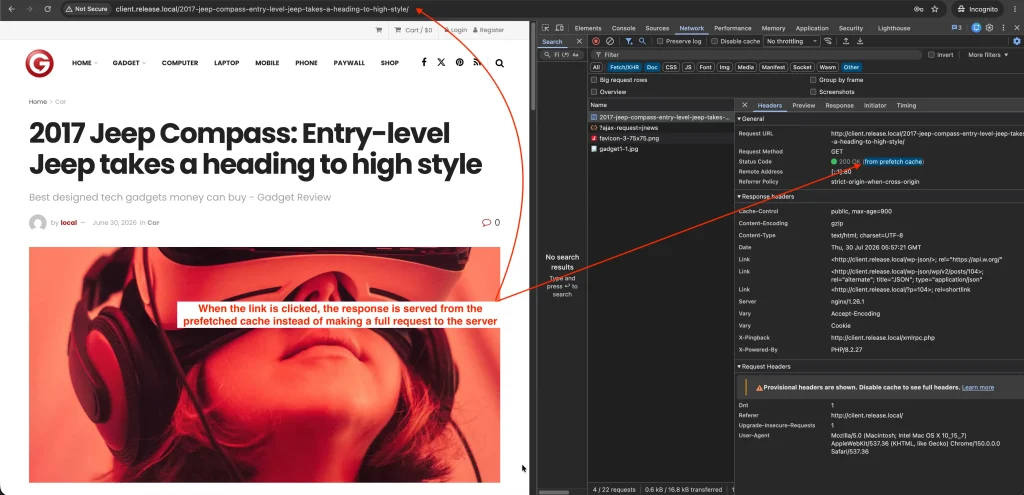
However, you previously had to configure the Preload Cache Headers manually so that preloaded pages could be loaded directly from the stored cache.
In this version, we have added the Enable Instant Preload Cache Headers option, which automatically adds the required Preload Cache Headers to your website. You can also adjust the Instant Preload Cache Duration option to determine how long the cached pages remain valid.
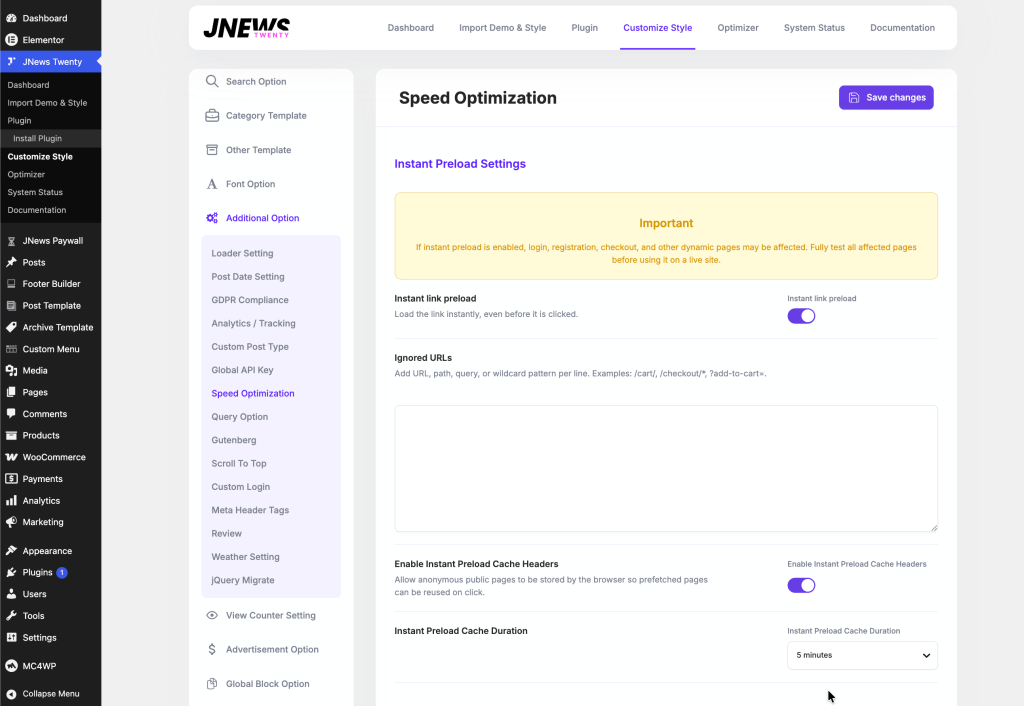
We also provide an Ignored URLs option that allows you to exclude specific pages from the Preload Cache.
Updated the font list in the JNews Global Font options
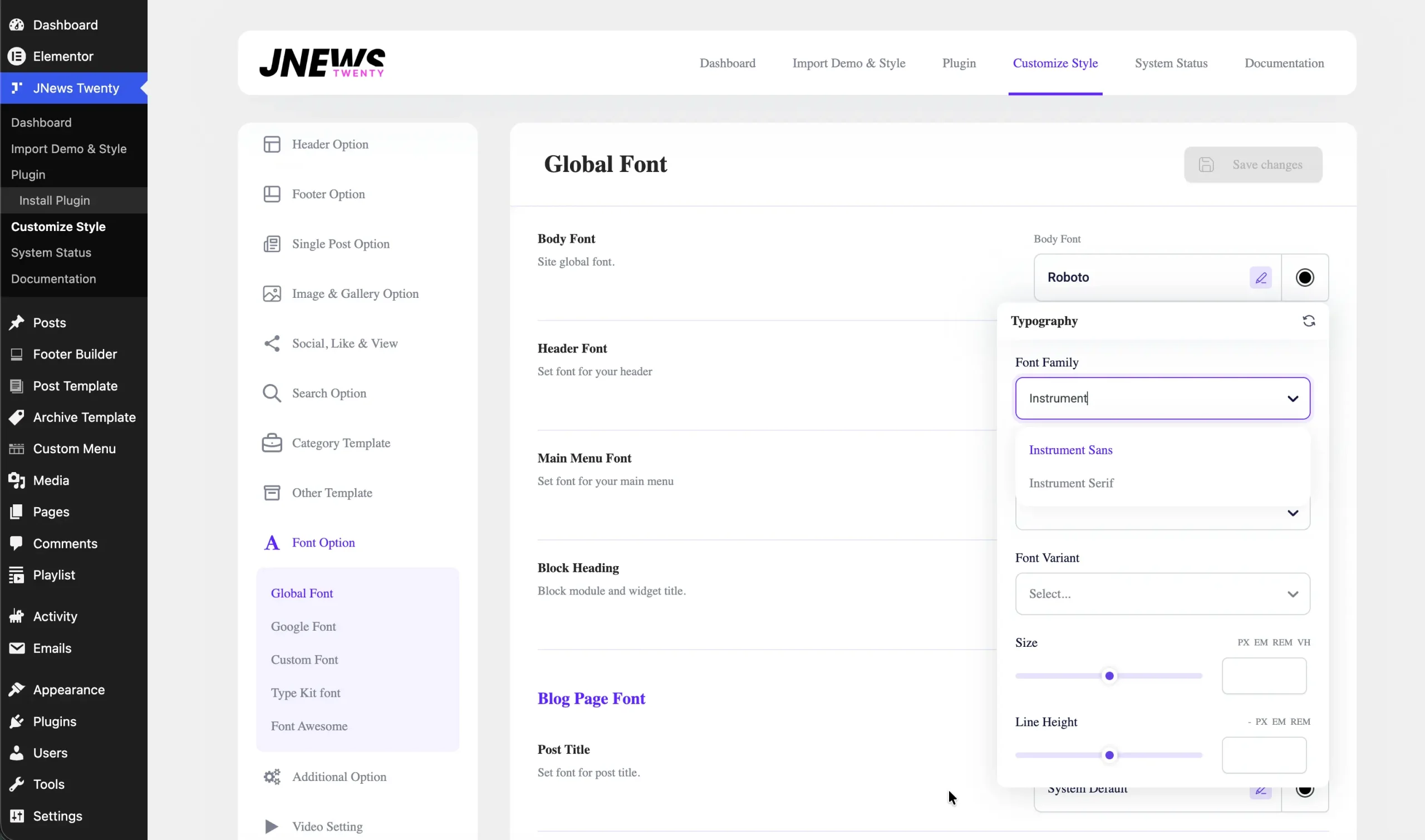
The Global Font settings have been updated with an expanded font library, providing a wider selection of fonts to choose from. These additions give you greater creative freedom when customizing your website’s typography.
Added JNews – Popular Post and JNews – Tab Post Widget as Elementor elements
The Popular Posts and Post Tabs widgets are now available as native Elementor widgets, bringing the same powerful functionality previously available in the WordPress Widget and WPBakery versions to the Elementor editor.
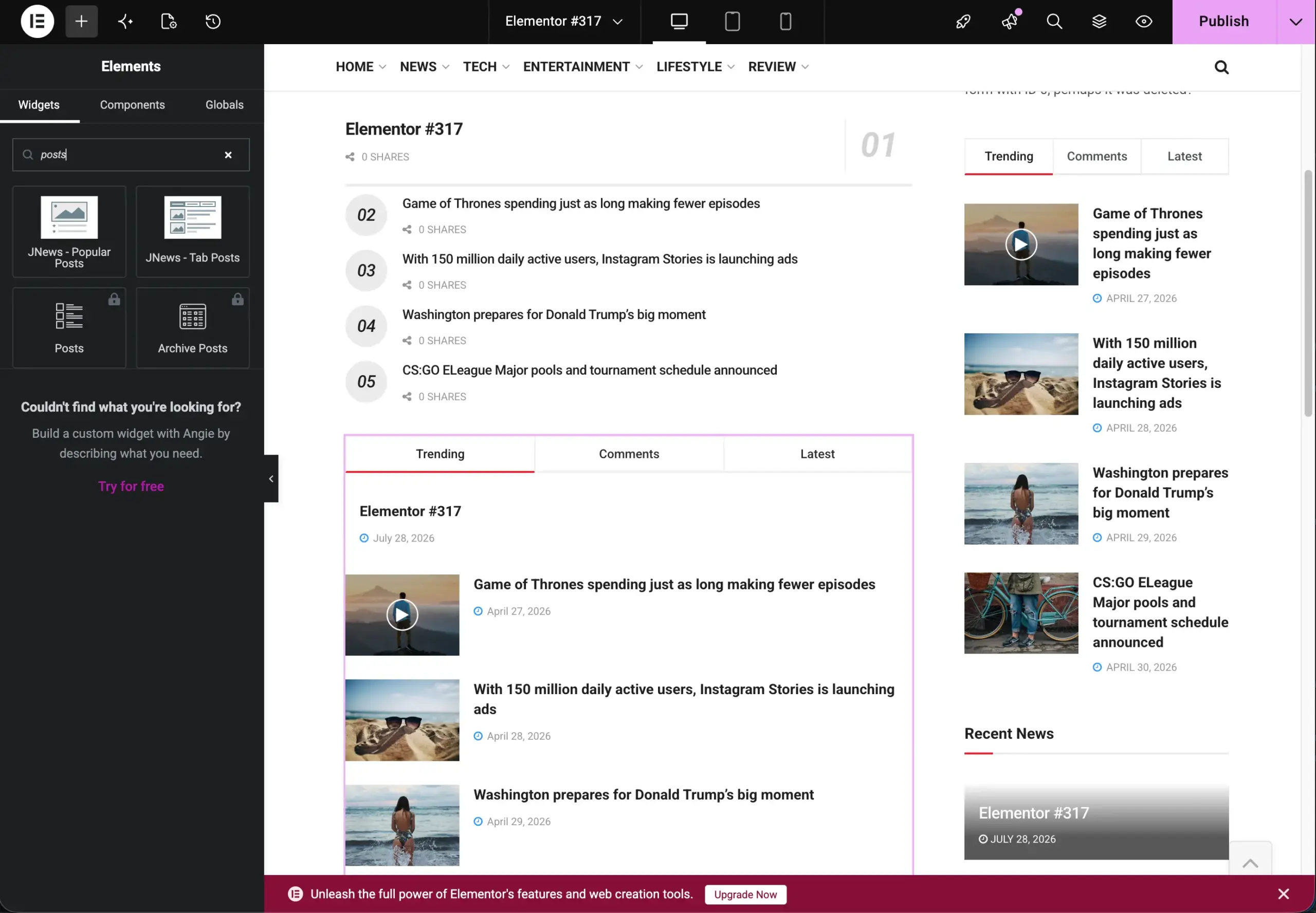
You can find both widgets under the JNews – Element category in the Elementor panel. Simply drag and drop the Popular Posts or Post Tabs widget onto your page to start building dynamic news sections with ease.
Adding filter by Category & Tags on Popular Post Widget
The Popular Posts widget now comes with powerful new filtering capabilities, allowing you to customize the displayed posts with greater precision.
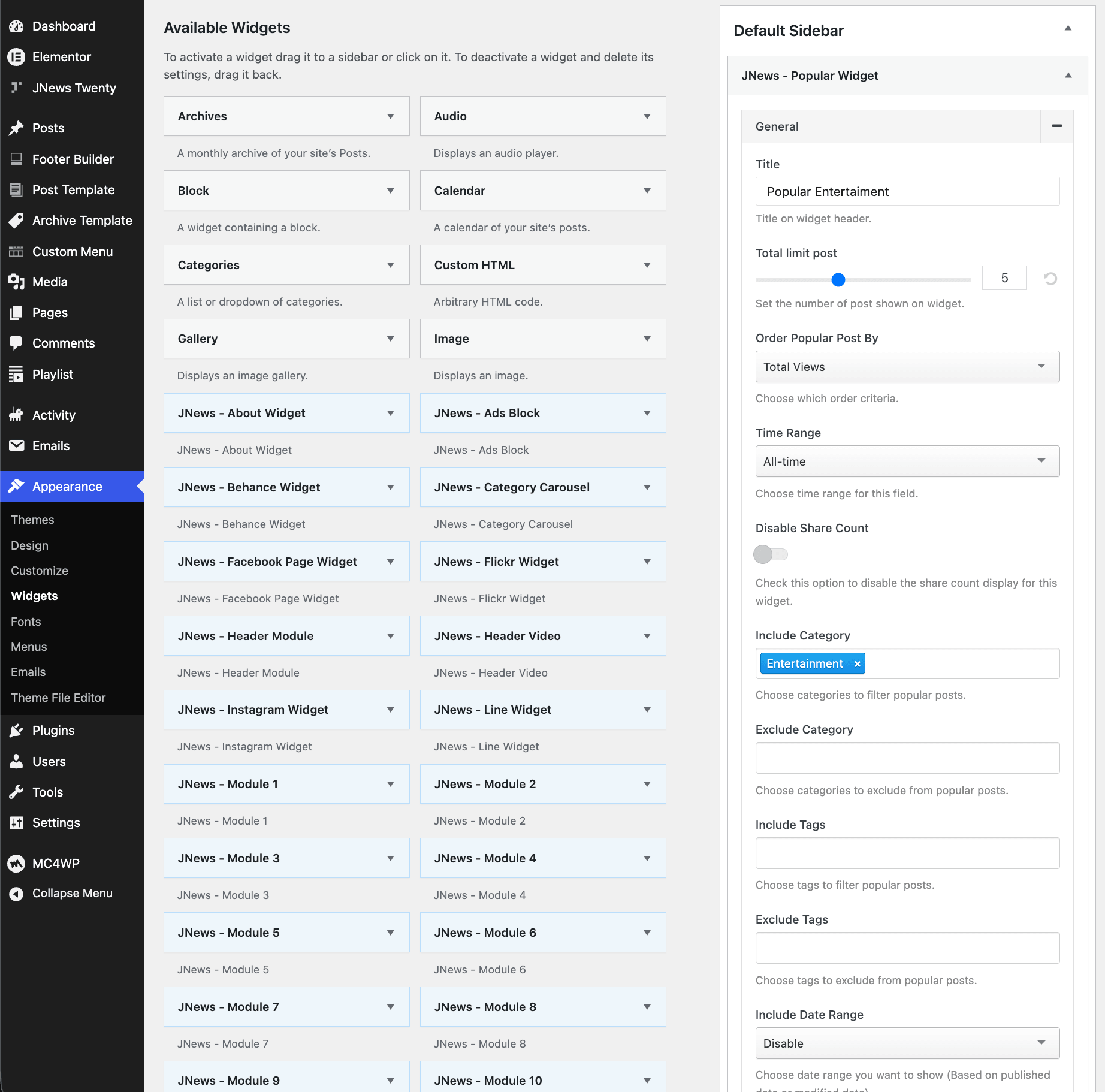
This new feature allows you to include or exclude specific Categories and Tags, making it easier to curate relevant content for different sections of your site. Whether you want to highlight posts from selected topics or prevent certain categories and tags from appearing, these flexible filtering options help you create more targeted and engaging popular post displays.
The new filtering functionality is available across all supported implementations, including the WordPress Widget, WPBakery, and the newly added Elementor block, providing a consistent experience regardless of which builder you use.